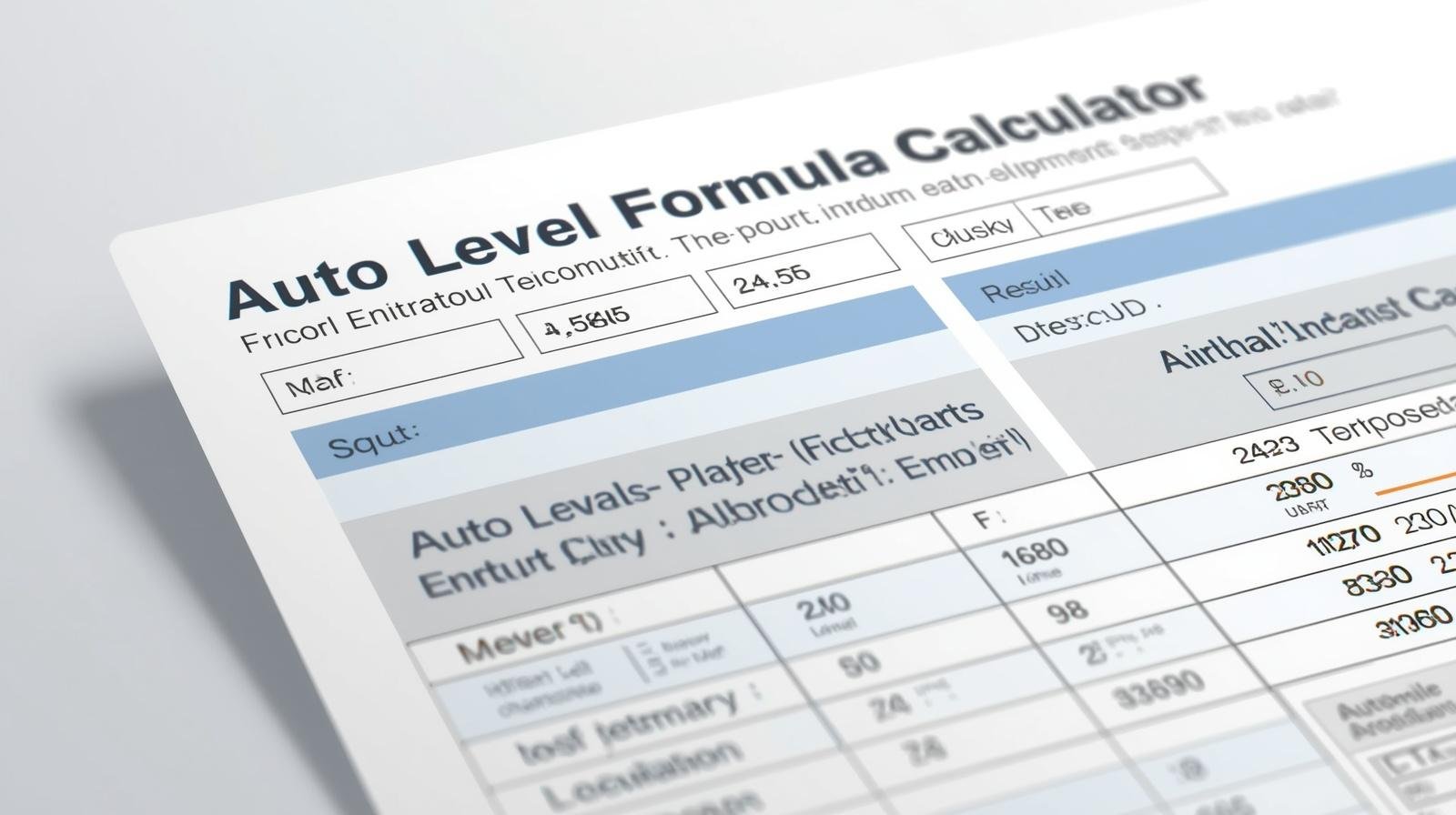
The Auto level formula calculator Excel helps surveyors save time. In this article you will learn about an auto level formula calculator Excel sheet, free download options, and how to use it for HI RL calculation and rise fall method. This simple guide also covers error checking and a Hindi surveying template idea.
What is an Auto Level Formula Calculator Excel Sheet?
This Excel sheet automates common leveling calculations. It uses formulas for HI RL calculation and rise fall method. The sheet reduces manual errors and speeds up field work.
Key uses
Surveyors use the tool to:
- Compute Height of Instrument (HI)
- Calculate Reduced Level (RL)
- Apply the rise fall method automatically
- Perform basic error checking
Main Features of the Excel Template
Below is a quick overview of useful features you will find in a good template. These elements make the auto level formula calculator excel sheet reliable and easy to use.
Essential features
- Pre-built formulas for HI and RL calculations
- Rise and fall columns for alternate method users
- Error checking rows to flag inconsistencies
- Clear column labels in English and a Hindi surveying template version
- Simple instructions and sample data
Why use the Excel sheet?
It is faster than manual calculation. It reduces arithmetic mistakes. It stores field notes in one file for easy sharing.
How the Calculations Work
Here is a short explanation of the formulas and methods used by the sheet. This helps you trust the numbers and check results quickly.
HI RL calculation
HI is Height of Instrument. RL is Reduced Level. The sheet takes a known benchmark RL and back sight to find HI. Then it uses foresight to compute RL for other stations.
Rise fall method
Rise and fall method records change between consecutive readings. Positive value is rise. Negative is fall. The sheet calculates RL by adding or subtracting the rise/fall from previous RL.
Error checking
Error checking includes summing rises and falls to ensure closure. The sheet highlights mismatches. This helps catch recording or typing mistakes quickly.
How to Use the Auto Level Excel Sheet
Follow these short steps to get results quickly. The layout is intuitive and works on PC or mobile office apps.
Step-by-step guide
- Open the Excel sheet and read the top instructions.
- Enter the known benchmark RL in the designated cell.
- Fill back sight (BS), intermediate sight (IS), and foresight (FS) values as you record them.
- Check the HI column. It should update automatically.
- Verify the RL column and the rise/fall column if you use that method.
- Look at the error checking area to confirm closure.
Tips for accurate entry
- Use consistent units (meters or feet).
- Keep readings to standard decimal places.
- Double-check negative or positive signs in rise/fall entries.
- Save a copy after each field session.
Sample Table: What the Sheet Looks Like
This sample shows typical columns used in the auto level formula calculator excel sheet. It helps you visualize the layout.
| Station | Back Sight (BS) | Intermediate Sight (IS) | Fore Sight (FS) | HI | RL | Rise/Fall |
| BM | 100.000 | |||||
| 1 | 1.500 | 0.800 | 101.500 | 100.700 | -0.300 | |
| 2 | 0.600 | 1.200 | 101.500 | 100.300 | -0.400 |
Download and Compatibility
You can find a free download for many templates online. Look for versions labeled as a Hindi surveying template if you need local language labels.
File formats and apps
- Standard: .xlsx (works in Excel)
- Open alternatives: .ods (works in LibreOffice)
- Mobile: works with compatible office apps on Android and iOS
Free download tips
Search for “auto level formula calculator excel sheet free download” or “Auto Level Formula Calculator Excel free download”. Choose files from trusted sources. Check macros and enable only if you trust the author.
Common Problems and Troubleshooting
Small mistakes can cause wrong RLs. Here are quick fixes for common issues.
Wrong HI or RL values
- Check if benchmark RL is correct.
- Ensure back sight and foresight values are in the right columns.
- Confirm decimal and unit settings.
Error checking fails
- Re-enter raw readings from the field book.
- Look for misplaced negative signs in rise/fall cells.
- Compare sums of rise and fall for closure error.
Best Practices for Surveyors
Follow these simple habits to get reliable results every time you use the sheet.
Field habits
- Keep a paper backup of raw readings.
- Label stations clearly in the field book.
- Use the rise fall method as a double-check to instrument method.
- Review error checking before finalizing the report.
Frequently Asked Questions
What is the focus of the Auto Level Formula Calculator Excel?
The focus is to automate HI RL calculation and to support the rise fall method. It helps to reduce manual arithmetic and to perform error checking quickly.
Can I get a free download for this Excel sheet?
Yes, many templates are available for free download. Search for “auto level formula calculator excel sheet free download” and pick a trusted source. Look for a Hindi surveying template if you need labels in Hindi.
Does the sheet support HI RL calculation and rise fall method together?
Yes. A well-designed template includes both instrument (HI) method and rise/fall columns for cross-checking. It also has error checking to ensure closure.
Is this tool suitable for beginners?
Yes. The sheet simplifies calculations and guides new users. Short instructions and sample data make it useful for learners and field teams.
Conclusion
The auto level formula calculator Excel sheet is a practical tool for surveyors. It speeds up HI RL calculation, supports the rise fall method, and includes error checking. A free download or a Hindi surveying template can make field work cleaner and safer. Use the tips above to get accurate results and avoid common mistakes.